
SSR -Using the Reconciliation Screen
When a statement moves from auto-matching to Reconciliation, it indicates that the document requires user intervention. The user can open the document and continue processing it on the Reconciliation screen.
The following sections are detailed below:
- Header Fields
- Reconciled Items
- Unreconciled Items
- Footer
- PDF Area
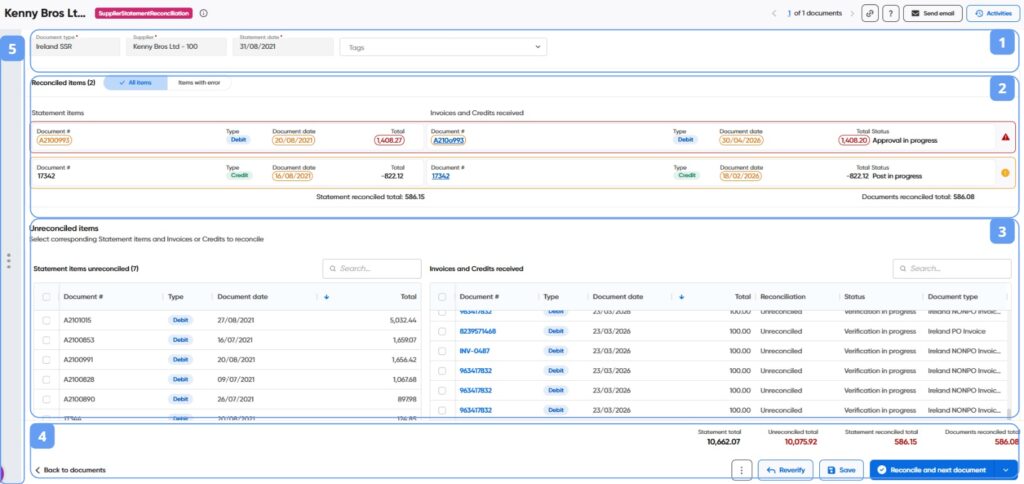
1. Header fields
The Header Fields section displays all Statement header information in read-only mode, with the exception of the Tags field, which are editable.
Document type, Supplier, Statement date, and tags: These are fixed fields. If a company has additional fields set up in the wizard, they will be shown in the next status once the document is successfully processed, or if the document is sent for verification again.
2. Reconciled Items
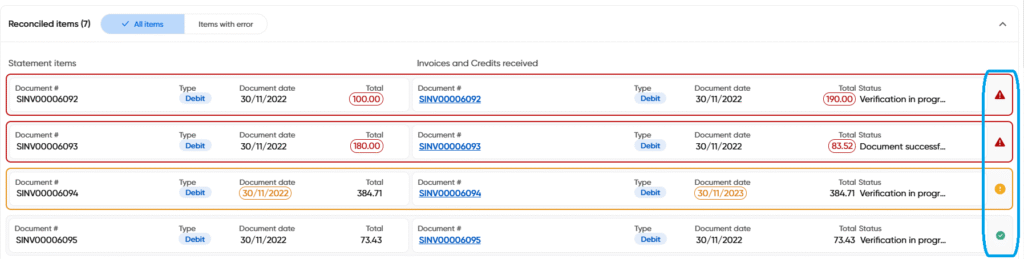
The Reconciled Lines section displays documents (invoice/credit) matched to the Statement lines, either through auto-matching or manual matching by a user:
- The left side shows Statement Items, and the right side shows the corresponding Matched documents (debit/credit)
- The displayed fields are fixed and cannot be customized.
- To unmatch lines, the user can click the “Detach line” icon next to the line total for both Invoice and Order lines.
This section has no editable fields:
- If an invoice needs to be amended, the user should click the invoice link and follow the usual workflow.
- If a statement needs to be edited, the user needs to reverify the statement
3. Unreconciled Items
To unmatch lines, the user can click the “Detach line” icon next to the line total for both Invoice and Order lines.
Live validations
Any differences in Document number, Document date, total, and status (optional) will be highlighted for the user’s attention:
Each matching line has a status indicator:
- Red: Discrepancy not allowed
- Amber: Discrepancy within tolerance
- Green: Totals match
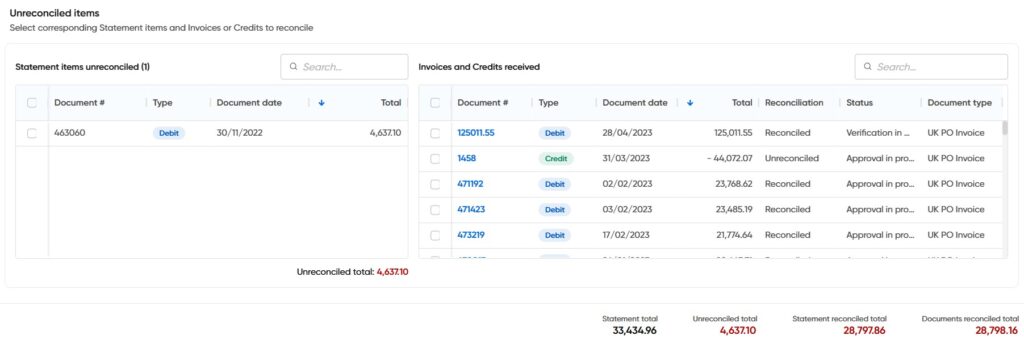
Additional Features
- Users can filter to display all Reconciled Items or only those with errors:

- The Collapse/Expand option allows users to hide or show the matching lines area:

- The user can easily access the Document by clicking on the links to open the document on a new tab:

3. Remaining lines
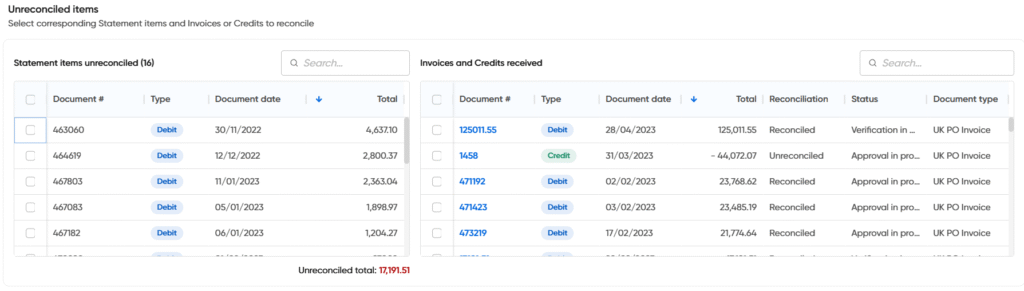
The Unreconciled items section brings together all unmatched statement lines and supplier documents for the customer-defined period (e.g. 3 months). The data displayed is fixed, meaning users cannot add or remove columns.
- The left side contains a table with unmatched statement lines, and the right side shows documents ( Invoices and credits)
Match lines
Multiple statement lines can be matched to multiple documents in a single step, and the same works in reverse.
Once the user clicks “Match Lines,” the selected lines move to the Reconciled area.
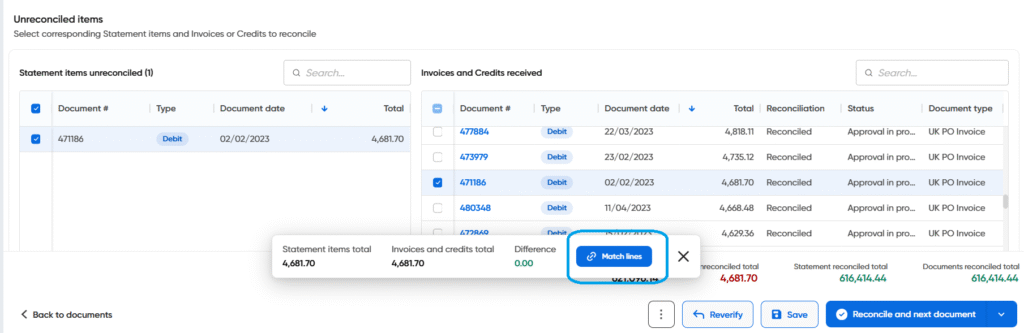
The “Statement reconciled Total” and “Document reconciled Total” fields are updated live whenever lines are matched or unmatched.
Additional Features
Users can search across the document number and the total
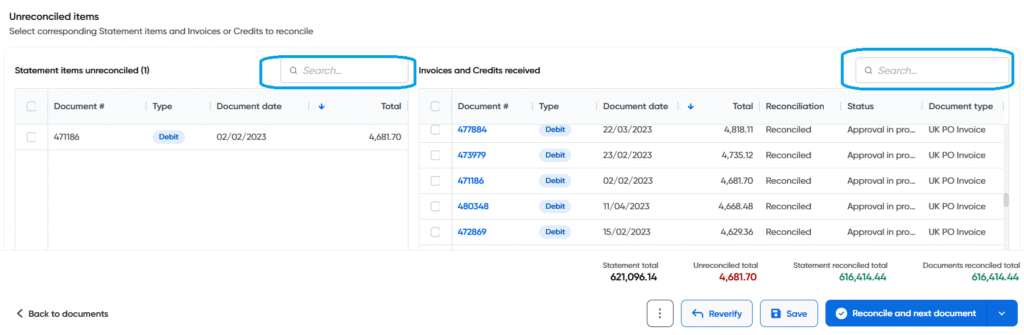
- Columns can be resized to adjust for viewing preferences.
- Users can also sort the data by any column as needed.
4. Footer

The Footer displays totals, with all values calculated live based on matches, unmatched lines, and quantity updates:
- Totals red: Document can’t be submitted; discrepancies are not within tolerance.
- Totals green: Totals match, and all statement lines have been matched; the document can be submitted.
Buttons
Delete and Park: The user can delete or park the document.
Reverify: Sends the document back to the verification status to update fields.
Save: This option is available when any changes are applied. It allows the user to save the document without submitting the matching.
Submit Matching: Users have three options when submitting the matching:
- Reconcile and Next Document: Submits the matching and moves to the next document in the queue.
- Reconcile and Close Document: Submits and returns to the Document Centre.
- Reconcile and Open in Next Status: Submits the matching and keeps the document open in the workflow’s next status.
Back to documents: Takes the user back to the Document Centre.
Validations
When the user clicks “Reconcile and (…)” the system runs the following validations:
statement total gross vs. documents matched total: If the statement total does not equal the document matched total the system returns an error message instructing the user to review the matched lines. – no tolerance is allowed
Remaining Statement Lines: If any statement lines remain unmatched, an error message warns the user that there are remaining statement lines to be matched.
5. PDF area
The document PDF is hidden by default, but can be opened by clicking the “View Document” button:
- When opened, the PDF will cover ⅓ of the screen.
- Users can close the PDF by clicking the same “View Document” button.