
Reports Centre v1
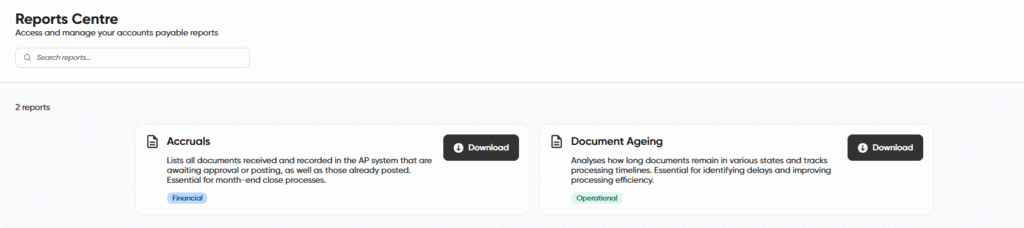
This article explains how to access and use the Reports Centre screen to view, filter and download reports.
1. Access & Permissions
To access the Reports Centre, users must have the appropriate permissions enabled in User Settings:
- Report Viewer permission
If these permissions are not enabled, the user will not be able access the Reports Centre.
If you believe you should have access, please contact your system administrator.
2. Accessing the Reports Centre
You can access the Reports Centre screen with the following steps:
- On the navigation sidebar below, select “Reports”
- You will be directed to the Reports Centre page
3. Reports Centre Overview
What is the Reports Centre?
The Reports Centre is a new, centralised hub K3 where you can view, filter, and download key reports.
What reports are currently available?
1. Document Ageing Report: Analyses how long documents remain in various states and tracks processing timelines. Essential for identifying delays and improving processing efficiency.
You can filter the report by:
- Document category
- Document status
- Date range (received date or document date)
- Default date range is the last 6 months from yesterday
- Group by: Document type and status, Assigned user, Document type, Status, and Supplier
2. Accruals Report: Lists all documents received and recorded in the AP system that are awaiting approval or posting, as well as those already posted. Essential for month-end close processes.
You can filter the report by:
- Document category
- Date range (received date or document date)
- Default date range is the last 30 days from yesterday
- Group by: Supplier and general ledger account
- Include line data
3. PO Matching Status: Identifies discrepancies and exceptions in the purchase order matching process. Highlights POs without invoices and invoices awaiting goods receipt notes (GRN).
You can filter the report by:
- Date range (received date or document date)
- Default date range is the last 90 days from yesterday
- Include line data
4. Document Receipt Trends: Tracks document receipt volumes over time to identify trends, seasonal patterns, and processing capacity requirements. Essential for resource planning and performance monitoring.
You can filter the report by:
- Date range (received date or document date)
- Default date range is the last 90 days from yesterday
5. Invoice Value Analysis: Provides financial analysis of invoice values across different statuses, suppliers, and time periods. Critical for cash flow management, spend analysis, and financial forecasting.
You can filter the report by:
- Date range (received date or document date)
- Default date range is the last 90 days from yesterday
Helpful features:
- Each report shows the last data refresh date and time (report data is refreshed daily at 5am UTC)
- Ability to clear all filters
- Downloads are provided in Excel (XLSX) format
- Option to reload the last filters you used when downloading a report
4. FAQs
How do I use the “Load last filters” button? The “Load last filters” button loads the last filters that were used to download a report. You must apply filters and download a report before it can be used.
The report is taking a long time to download? When there is a large amount of data in the filter applied e.g. an extended date range, then the report can take up to a minute to download.