
Purchase Orders – Creation
This article explains how to access and use the PO Creator screen to create and submit Purchase Orders.
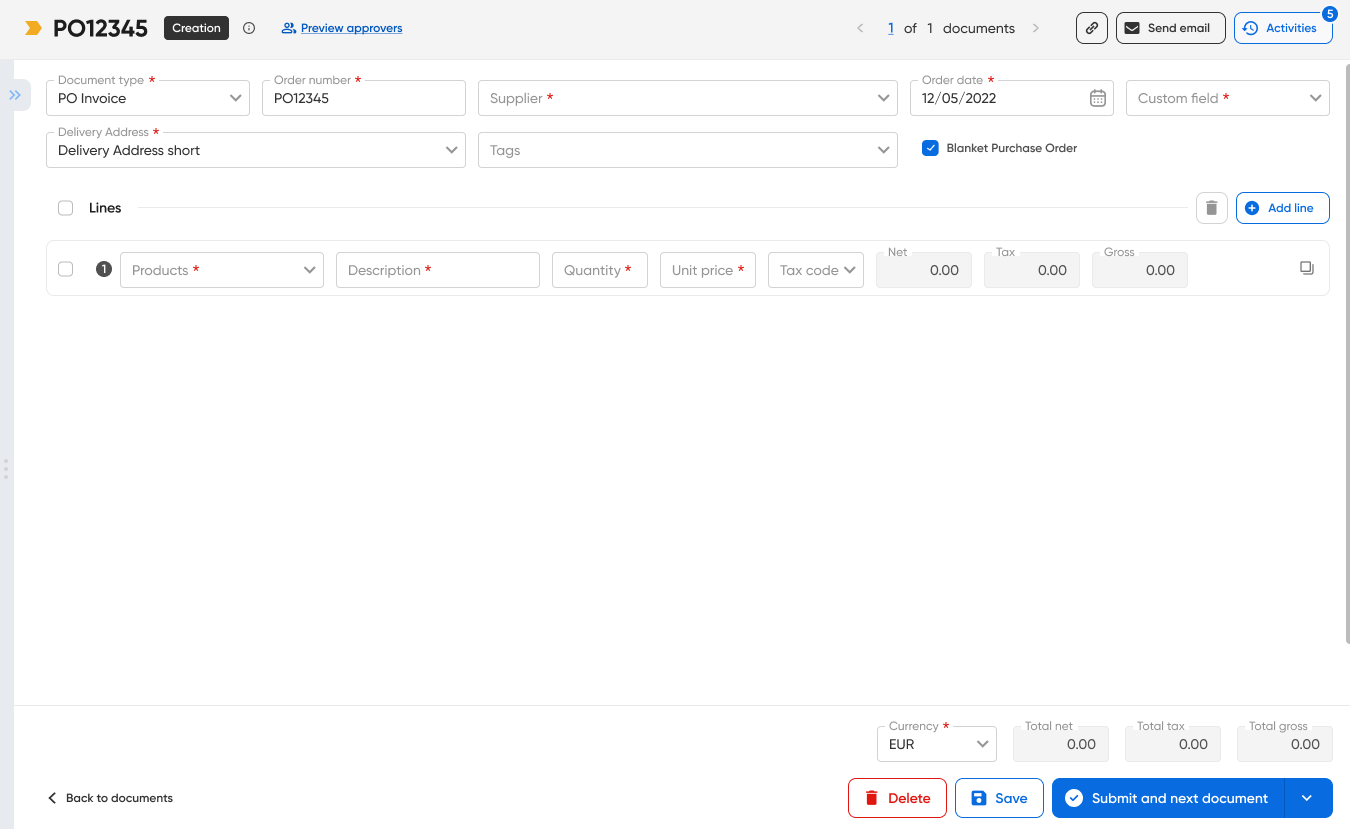
1. Access & Permissions
To access the PO Creator, users must have the appropriate permissions enabled in User Settings:
- Creation status permission
- Edit permission
If these permissions are not enabled, the user will not be able to create or modify Purchase Orders.
If you believe you should have access, please contact your system administrator.
2. Accessing the PO Creator
You can access the PO Creator screen in two ways:
- Click Create Document from the Landing Page
- Click Create Document from the Document Centre
3. PO Creator Screen Overview
The PO Creator screen is divided into three main sections:
- Header
- Lines
- Footer
1. Header

The header section contains key Purchase Order information. Fields available in the header may vary, as they are configurable depending on your organisation’s setup.
If the Blanket Purchase Orders feature is enabled for your organisation:
- A “Blanket Purchase Order” checkbox will appear in the document header.
- When selected, the user can define a Purchase Order Expiry Date.
- Expiry Date: Determines the validity of the Purchase Order; once reached, the PO can no longer be receipted or invoiced. This option is only visible if the Blanket Purchase Order feature is enabled.
2. Lines

A Purchase Order must contain at least one line, but can include multiple lines.
Line-level fields are configurable depending on your organisation’s setup.
The following totals are automatically calculated for each line:
- Line Net = Quantity × Unit Price
- Line Tax = Calculated based on Quantity, Unit Price, and selected Tax Code
- Line Gross = Line Net + Line Tax
These values update automatically whenever Quantity, Unit Price, or Tax Code is changed.
Adding or Copying Lines
Users can:
- Click Add Line to create a new empty line.
- Use the Copy icon at the end of an existing line to duplicate that line.
Deleting Lines
To delete a line:
- Select the checkbox next to the line.
- Click the Bin icon.
The final remaining line cannot be deleted. Each Purchase Order must contain at least one line.
3. Footer

The footer section displays the order totals, which are automatically calculated based on the Purchase Order lines.
Action Buttons
The following actions are available:
- Delete: Deletes the document
- Save: Saves the document as a draft
- Submit and close document: Submits the document and returns the user to the Document Centre
- Submit and Open in Next Status: Submits the document and opens it in the next workflow status
- Back to Documents: Returns the user to the Document Centre without submitting changes