
User Permissions
Company admins can assign various permissions to a user or permission group. The below permissions are set at the document type level.
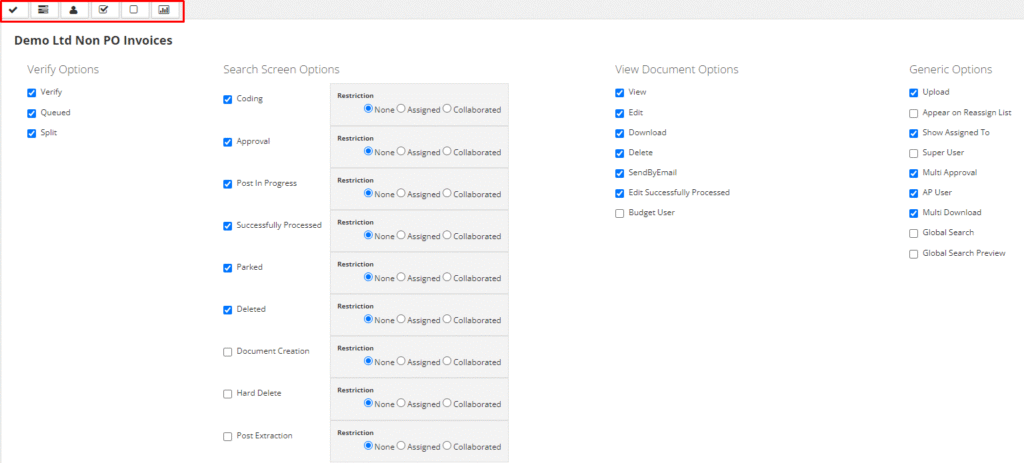
A company admin can enable access to the verify options by ticking the box beside the desired option.
Verify options:
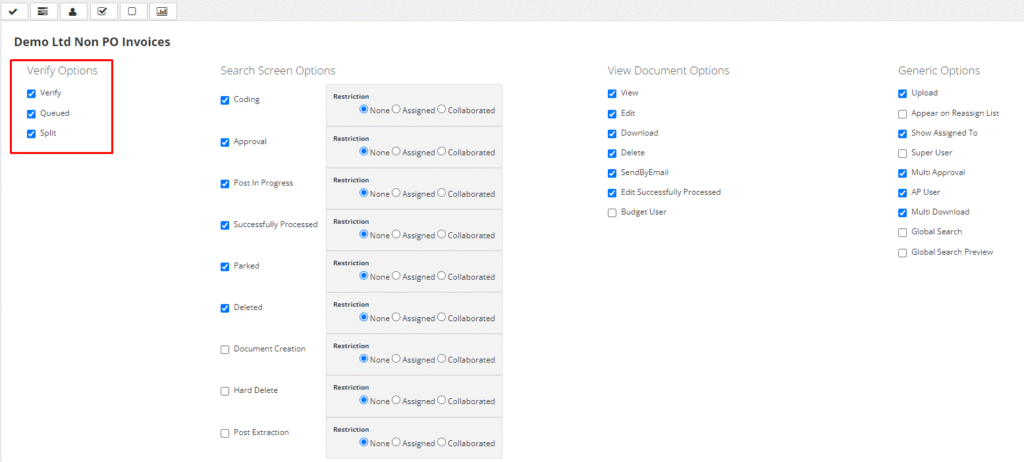
- Verify – Access to the document queue stopped in the verifications screen due to exceptions or manual input, extracted information can be modified in this screen.
- Queued – Access to the list of documents that have been received via email or upload screen and are currently being processed by Kefron.
- Split – Ability to manually split received multi-page files into multiple documents.
Search screen options:
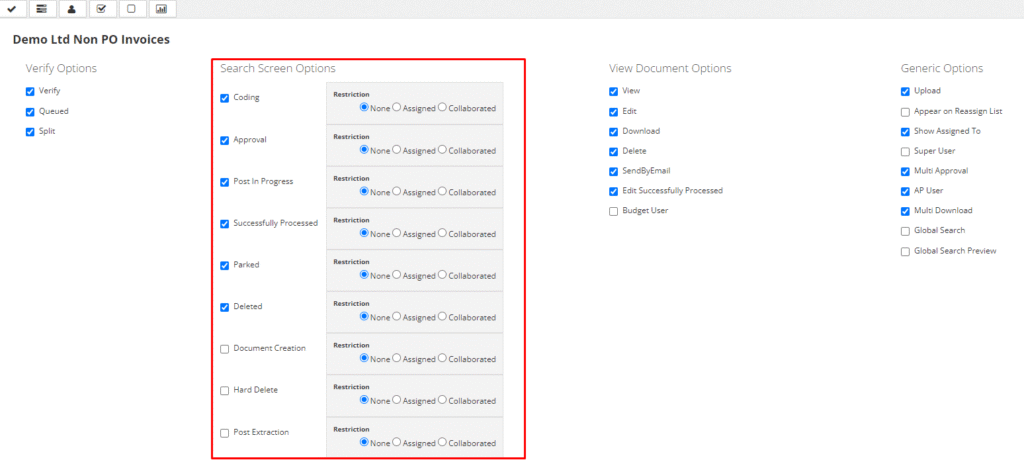
Each document type will have various search screen options. These relate to the various queues/statuses associated with that document type.
A company admin can enable access to the queues/statuses by ticking the box beside the desired queue/status.
The system will automatically assign the restriction to the queue/status as none. This means a user will be able to access all documents in that queue/status. It is up to the company admin to choose the level of restriction the user/permission group should have access to.
- Assigned – Restriction will limit the user document visibility to the documents that are currently assigned to this user in this workflow state. Mostly used in approval.
- None – The option will be selected by default and allows the user to search for all documents available in this document status.
View document options:
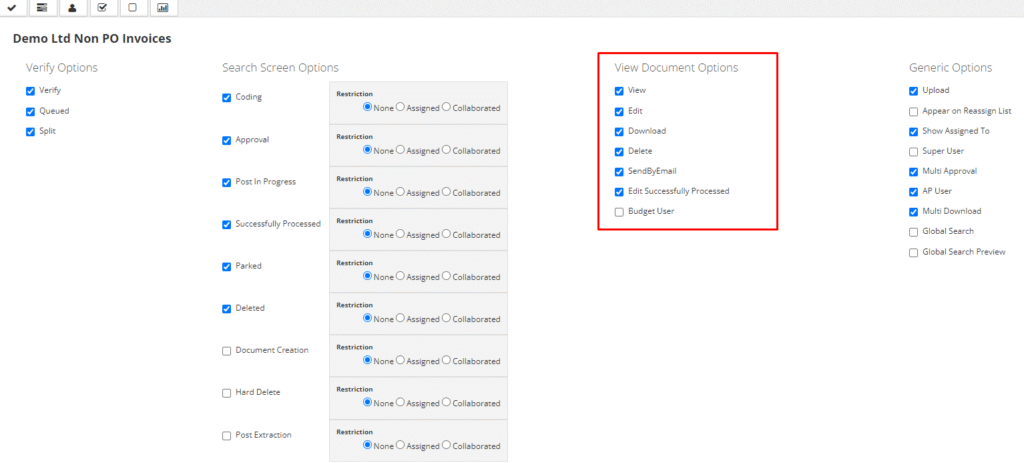
Each document type will have various view document options. These options are set to control how much a user/permission group can modify a document.
- View: Allows a user/permission group to only view the document.
- Edit: Allows a user/permission group to edit the document the document.
- Download: Gives a user/permission group access to the download button to download the document.
- Delete: Gives a user/permission group access to the delete button to delete the document.
- Send by email: Gives a user/permission group access to the email button to send an email from Kefron.
- Edit Successfully Processed: Gives a user/permission group access to the unlock button to unlock and edit a successfully processed document.
- Budget User: Should be selected if the user will be included in the budget.
- Amend: Gives a user/permission group access to the amend button to send a successfully processed document back to the creation queue to be amended.
- Re-Open: Allows users to re-open previous closed purchase orders.
Generic Options:
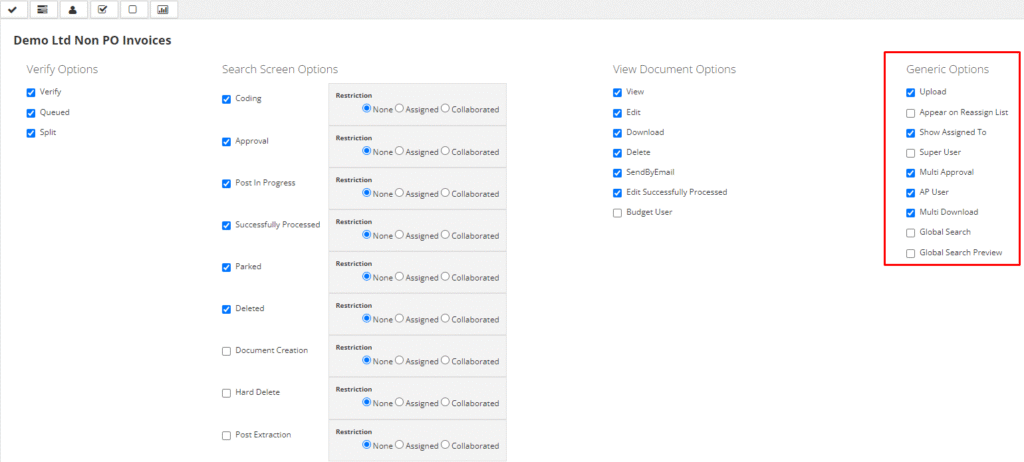
Each document type will have various generic options. These options are set to control additional privileges a user/permission group should have.
- Upload: Gives a user/permission group access to the upload button to manually upload documents to Kefron.
- Appear on the reassign list: Setting this will make the user appear in the reassign dropdown list when a user is approving or coding a document.
- Show assigned to: Setting this will allow the user/permission group to have an additional ‘assigned to’ column on the search screen, allowing the user/permission group to see who the document is currently assigned to for approval or coding.
- Super User: Setting this will allow the user/permission group to have additional privileges, such as being able to edit documents even if they are assigned to another user.
- Multiple approval: This will allow a user/permission group to approve multiple documents from the search screen, as this setting will give them access to an approve button on the search screen.
- AP User: This permission will allow multiple users to access the same document at once, without this permission only one user will be able to access a document, and all other users will be locked out of the document.
- Multi download: This will allow a user/permission group to document multiple documents from the search screen, as this setting will give them access to an additional download button on the search screen.
Suggested Permissions and Charts:
Each document type will have various Suggested Permissions and Charts. These are suggested permission templates for various user types within Kefron.