Ageing Documents
Overview:
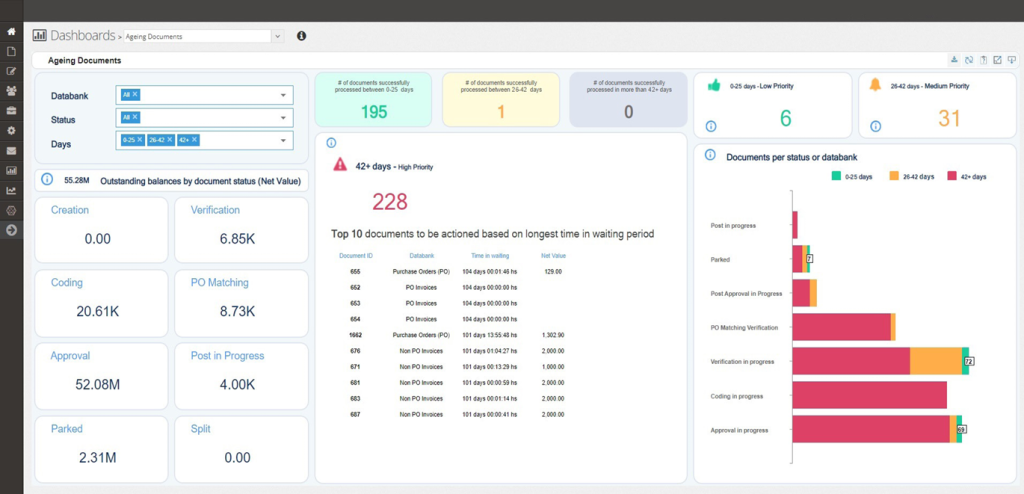
The Ageing Dashboard gives an overview of open documents received within the chosen period in various databanks or statuses within the system. It shows the number and value of each document, (PO, PO Invoices, Non-PO invoices, etc.), pending actions at each status, and their waiting period. Priority of waiting period is set by the Company Admin.
The default value for date parameters is the current month.
Open documents are documents that haven’t been successfully processed. This dashboard only considers open documents within active databanks, (PO, GRN, and Invoices). Documents statuses that are included in this dashboard are Extraction in progress, Verification in progress, Coding in progress, Approval in progress, Post in progress, Post Approval in Progress, Parked, Split, and PO Matching Verification.
The dashboard doesn’t show you the live data but the data from the previous night as the database for dashboards is refreshed on a nightly basis.
How to enable it:
1. Company settings
Company Admin can set the waiting/ageing period of documents that will be considered as the Green, Amber, or Red zone within the Ageing Dashboard.
The Company Admin can also see this new tab, Dashboard Settings, within the Company Settings. This is where you can set the waiting period. See the example below.
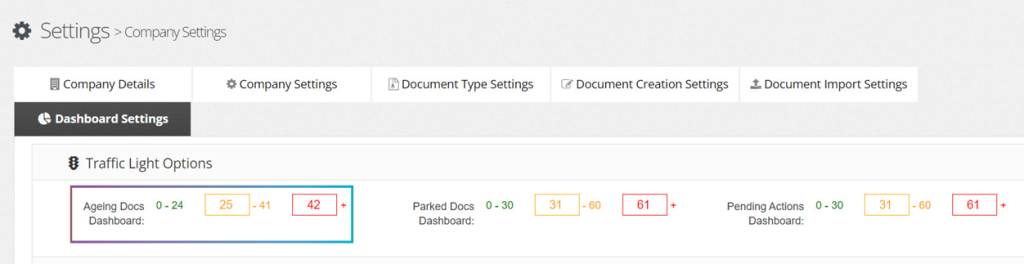
In the above case, the Green zone refers to any documents that are open for less than 24 days, the in Amber zone are any documents that have been open for 25 – 60 days since the date of receipt, and in the Red zone are documents that have been open for more than 60 days.
2. User settings
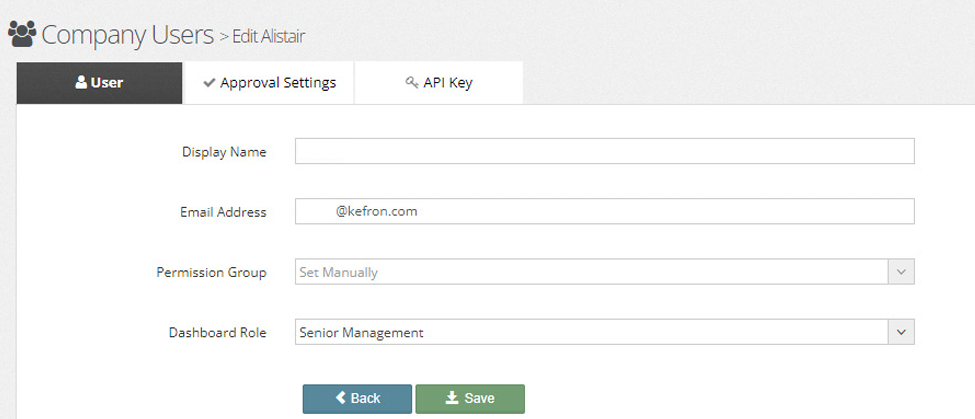
Company Admin needs to assign each KAP User with a role for dashboard. There are 4 roles to choose from:
1. Senior Management
2. AP Manager
3. AP Team
4. Approvers/Procurement Managers.
Based on the chosen roles, the company admin can decide who can view specific dashboards. The new field ‘Dashboard Role’ is available within the Edit User and Group Permissions screens.
3. Dashboard roles
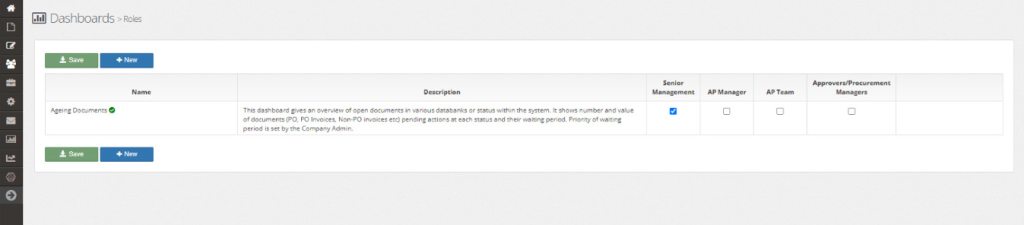
The below new screen (under User settings, Dashboard Roles), the Company Admin can choose which roles can view what dashboards. Only Company Admin has the ability to do this. Once the dashboards are assigned to various roles, users will start seeing dashboards as per their roles.