
Invoices – PO matching
PO Matching ensures that invoices are validated against Purchase Orders (PO) and Goods Received Notes (GRN), checking that key details align. If the invoice passes all matching validations, it proceeds for export or further checks (coding or approval). If it fails (e.g., missing order lines or mismatched quantities and unit price), the document stops for user review.
When a document requires user intervention in the “PO Matching” status, the user can open the document and continue processing it on the PO Matching screen.
The following sections are detailed below:
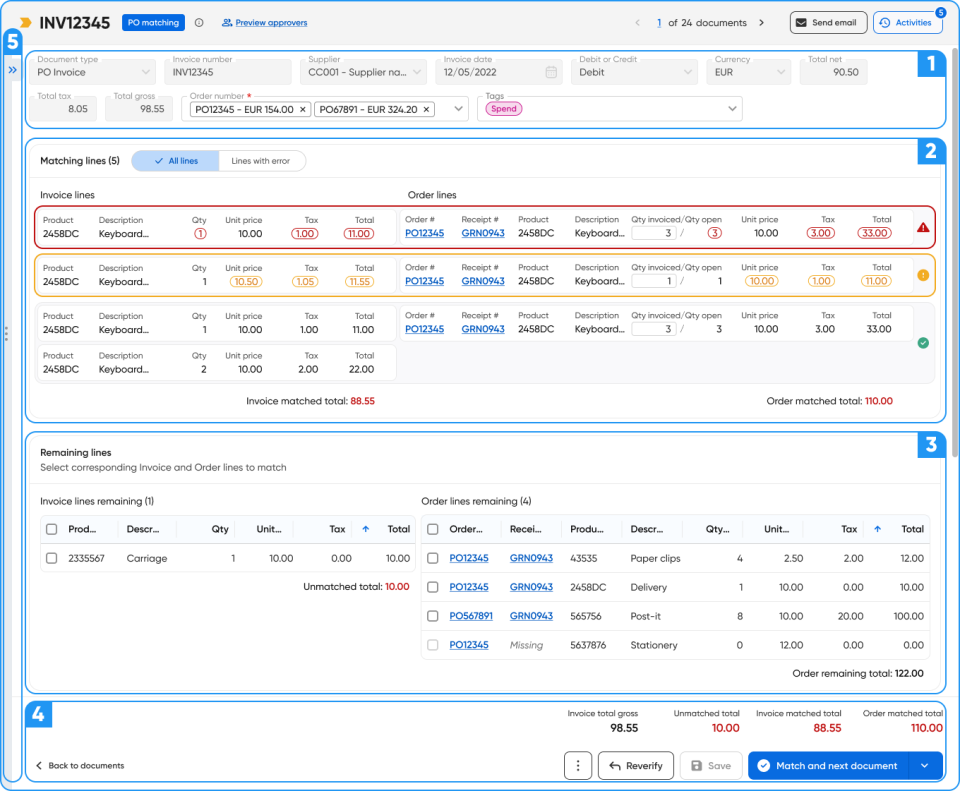
1. Header fields
The Header Fields section displays all invoice header information in read-only mode, with the exception of the Order Number and Tags fields, which are editable.
The Order Number field is a multi-select field that shows each order number along with its currency and total gross amount. Only orders from the same supplier with a status of “Opened” are displayed; orders that are still in approval or already closed will not appear. Users can select multiple purchase orders (POs) to match with the invoice. When an order is added, the corresponding PO lines are automatically added to the Remaining Lines section. If an order is removed, its PO lines are also removed from both the matching lines and the remaining lines.
2. Matching lines
The Matching Lines section displays invoice lines matched to the PO/GRN lines, either through AI matching or manual matching by a user:
- The left side shows Invoice Lines, and the right side shows the corresponding Matched Order Lines.
- The displayed fields are fixed and cannot be customized.
- The “Receipt #” field is only visible when 3-way matching is enabled for the invoice.
- Qty Open on the Order lines refers to the quantity available for matching, indicating that no invoice has been received for this quantity yet. This value is updated each time an invoice is matched to the same PO/GRN line.
Update “Qty Invoiced”
/2456920683-Screen-Recording-2024-09-15-160104.gif)
The only editable field in this section is “Qty Invoiced”, where the user can manually update the number of items being consumed from the PO/GRN by the invoice. The default value for this field is the “Qty Open” value.
Users cannot enter a value higher than the “Qty Open”.
When “Qty Invoiced” is updated, the “Tax” and “Total” fields are automatically recalculated based on the new invoiced quantity.
This feature is handy for managing partial invoices or different units of measure.
Unmatch lines
/1972725119-Screen-Recording-2024-09-15-161255.gif)
To unmatch lines, the user can click the “Detach line” icon next to the line total for both Invoice and Order lines.
Live validations
Discrepancies in quantity, unit price, tax, or total are highlighted for the user’s attention:
- Red: Discrepancy not allowed
- Amber: Discrepancy within tolerance
Each matching line has a status indicator:
- Red: Discrepancy not allowed
- Amber: Discrepancy within tolerance
- Green: Totals match
The “Invoice Matched Total” and “Order Matched Total” are updated live when lines are matched or unmatched, and discrepancies are highlighted:
- Red: Difference not within tolerance
- Amber: Difference within tolerance
- Green: Totals match
Additional Features
- Users can filter to display all matching lines or only those with errors:
- The Collapse/Expand option allows users to hide or show the matching lines area:
- The user can easily access the PO or GRN by clicking on the links in the “Order #” or “Receipt #” columns to open the document on a new tab:
- Hovering over “Tax” value will display a tooltip with the line tax rate:
3. Remaining lines
The Remaining Lines section displays all unmatched invoice lines and PO/GRN lines. The data displayed is fixed, meaning users cannot add or remove columns.
- The left side contains a table with unmatched invoice lines, and the right side shows unmatched PO/GRN lines.
- Only order lines with remaining quantities are displayed, meaning if an order line has been fully invoiced, it won’t be available to match with another invoice.
- If a PO line has multiple GRNs created for it, a separate line is shown for each GRN, displaying the appropriate quantities.
Match lines
/3470101312-Screen-Recording-2024-09-15-171304.gif)
Users can manually match lines by selecting invoice and PO lines using checkboxes. Multiple invoice lines can be matched with multiple PO/GRN lines at once.
When lines are selected, a summary is displayed showing the total of the selected invoice lines and the total of the selected PO lines, along with the difference between them. Once selections are made from both sides, the “Match Lines” button becomes available.
Once the user clicks “Match Lines,” the selected lines move to the Matching Lines area.
The “Unmatched Total” and “Order Remaining Total” fields are updated live whenever lines are matched or unmatched.
Receipt #
- The “Receipt #” column is displayed only when 3-way matching is enabled.
- If 3-way matching is enabled but no GRN has been created for a particular line, the line will display “Missing“ in the “Receipt #” column, and the checkbox for that line will be disabled. This means users cannot match a PO line if the GRN hasn’t been created yet.
Live validations
- When “Unmatched Total” differs from 0, it’s displayed in red.
Additional Features
- Users can click on Order # or Receipt # links to open the respective documents in a new tab.
- Columns can be resized to adjust for viewing preferences.
- Users can also sort the data by any column as needed.
4. Footer
The Footer displays total validations, with all values calculated live based on matches, unmatched lines, and quantity updates:
- Totals red: Document can’t be submitted; discrepancies are not within tolerance.
- Totals amber: All discrepancies are within tolerance; the document can be submitted.
- Totals green: Totals match, and all Invoice lines have been matched, the document can be submitted.
Buttons
Delete and Park: The user can delete or park the document.
Reverify: Sends the document back to the verification status to update fields.
Save: This option is available when any changes are applied. It allows the user to save the document without submitting the matching.
Submit Matching: Users have three options when submitting the matching:
- Match and Next Document: Submits the matching and moves to the next document in the queue.
- Match and Close Document: Submits and returns to the Document Centre.
- Match and Open in Next Status: Submits the matching and keeps the document open in the workflow’s next status.
Back to documents: Takes the user back to the Document Centre.
Validations
When the user clicks “Match and (…)” the system runs the following validations:
- Remaining Invoice Lines: If any invoice lines remain unmatched, an error message warns the user that there are remaining invoice lines to be matched.
- Invoice total gross vs. Order matched total: If the invoice total does not equal the order matched total or is outside the allowable tolerance, the system returns an error message instructing the user to review the matched lines.
5. PDF area
/3930998576-Screen-Recording-2024-09-15-175702.gif)
The document PDF is hidden by default but can be opened by clicking the “View Document” button:
- When opened, the PDF will cover ⅓ of the screen.
- Users can close the PDF by clicking the same “View Document” button.